
Go to O&O DiskCommander
There are passions for collecting that are fun. Gathering files you no longer need costs you storage space and eventually money – if you need to buy new hard drives. We have developed O&O DiskStat for you so that finding and cleaning up the space wasters does not become a time-consuming ordeal.
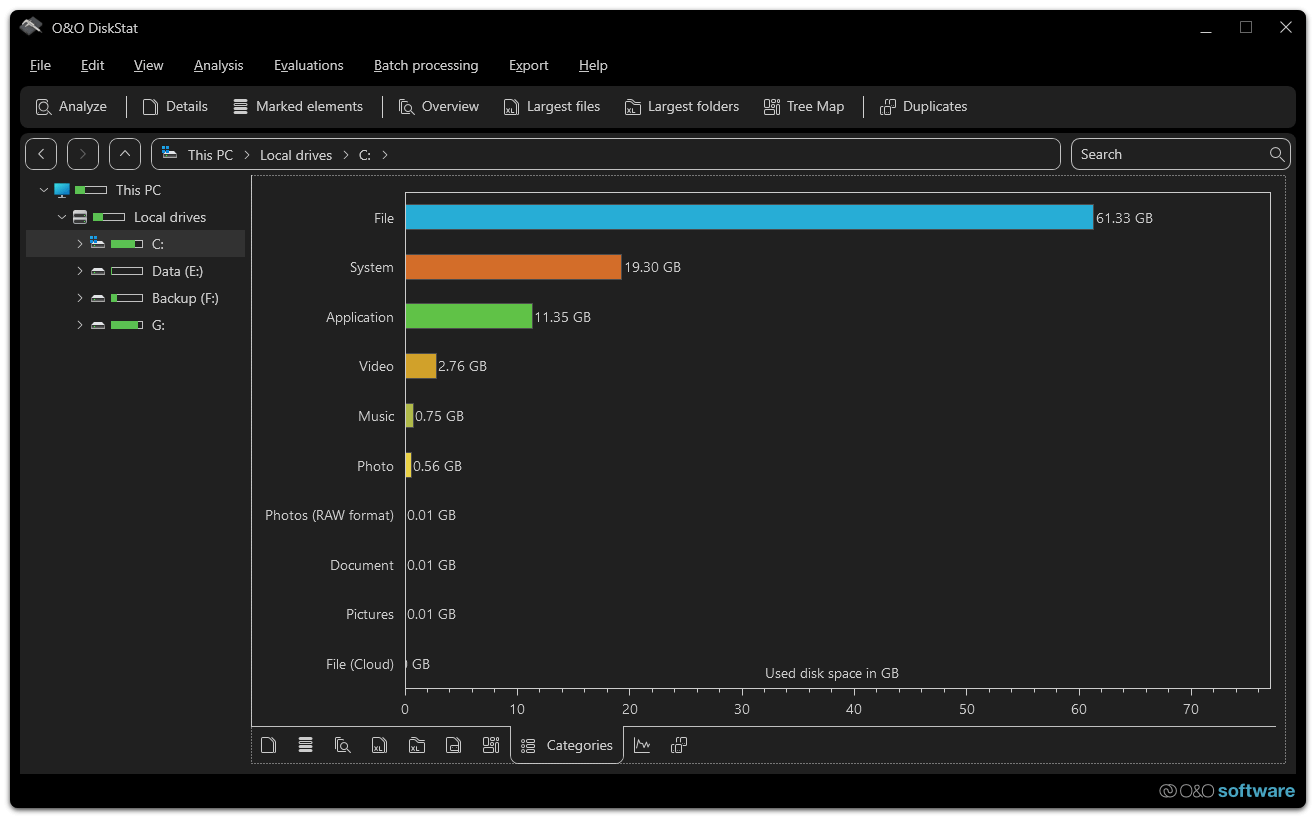
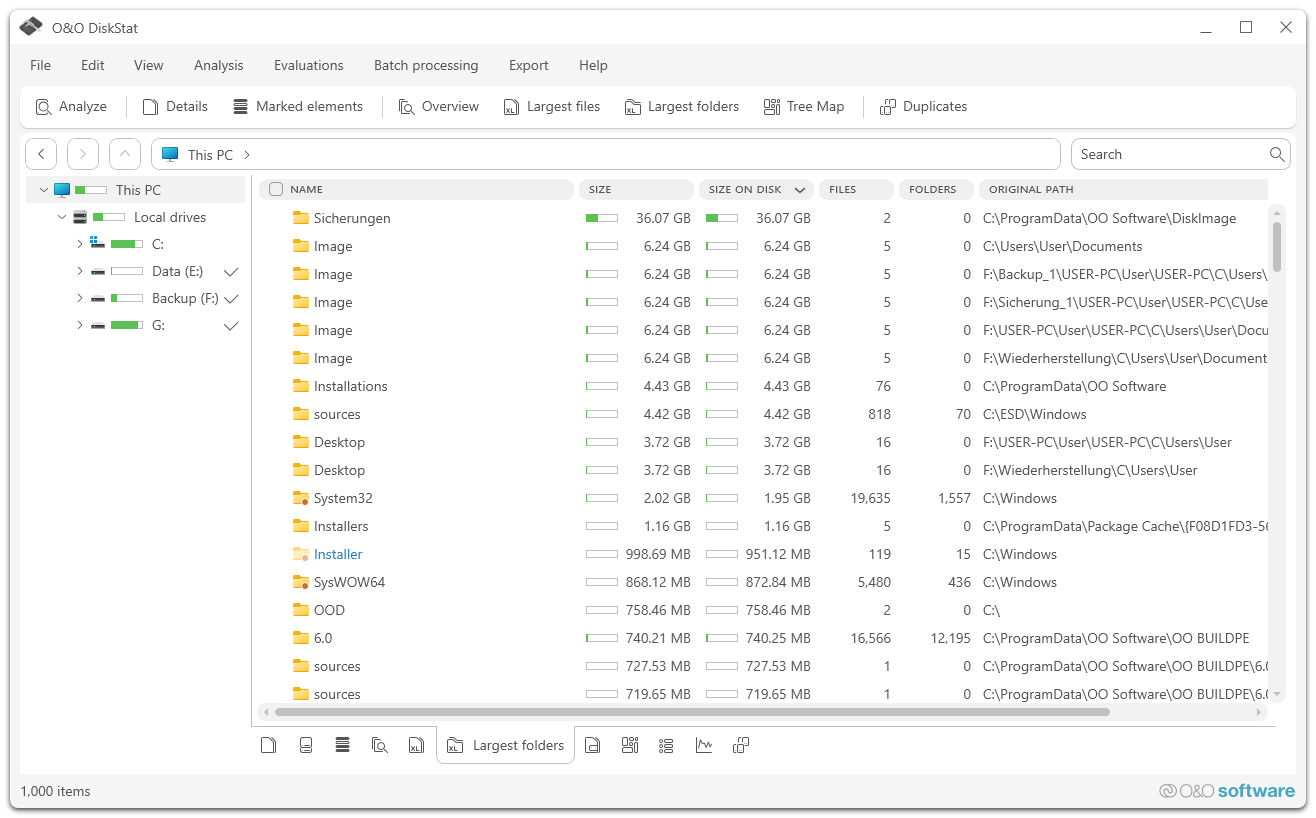
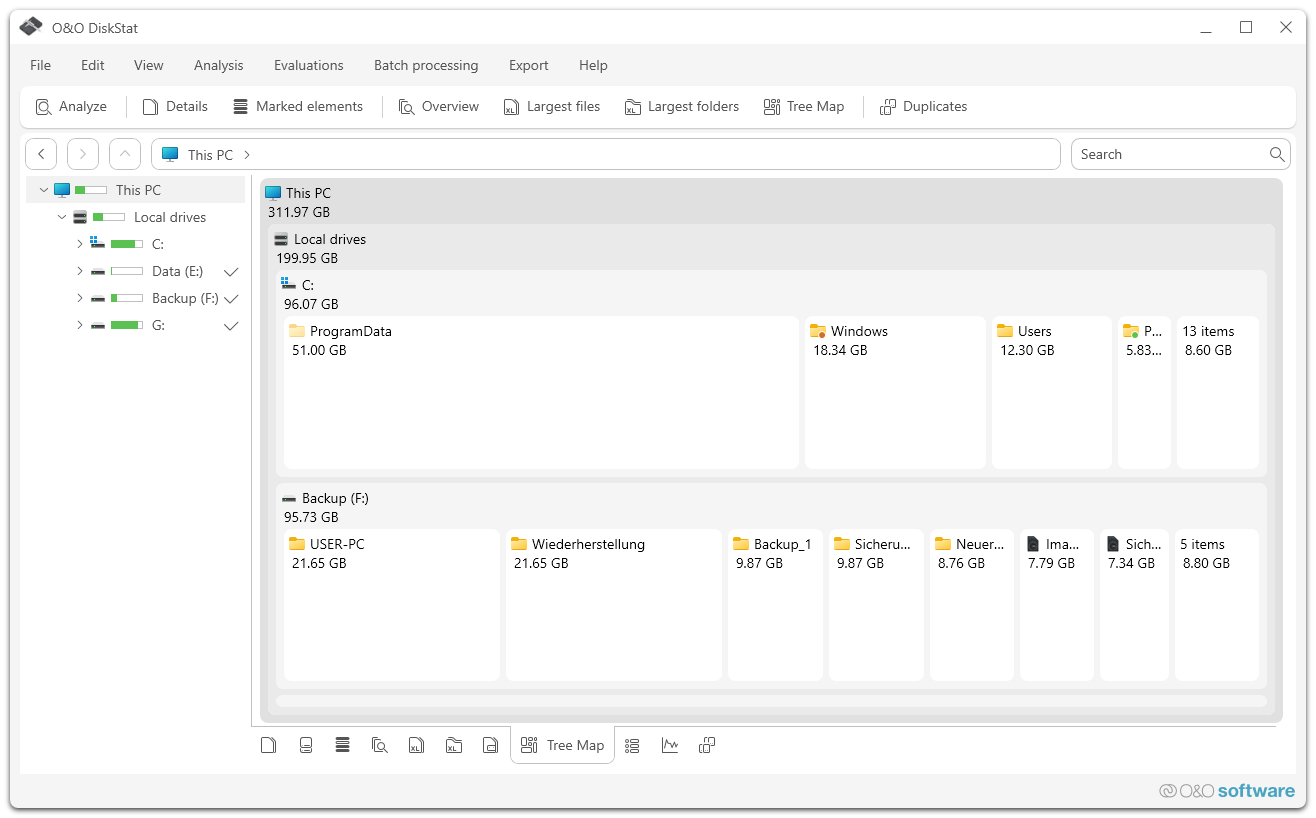
You’ll be amazed at how much space you gain once you’ve cleared yourself of excess baggage. O&O DiskStat shows you which files are using how much space in clear lists and diagrams. Whether in the network or on your home PC. Once you have identified the superfluous files and the biggest space wasters, you can eliminate them quickly and easily. In this way you can keep track of your data and save yourself the expense of additional storage media.
Functions
- Analysis of directories, drives, drive groups or the entire computer
- Detailed Statistics
- New UI with Explorer-like navigation
- Search for files and directories
- Finding Duplicates
- Mark files across directory and partition boundaries
- Batch processing of files and directories
- Export and import of analysis files
System requirements
- Windows 10 or 11 – all editions
- Windows Server – 2016 up to 2022
- No installation necessary, the program starts immediately
- .NET Framework 4.8 or later
- 10 MB disk space
- 1 GB RAM (recommended 2 GB)
- Internet connection
The detective against memory hogs on the hard drive
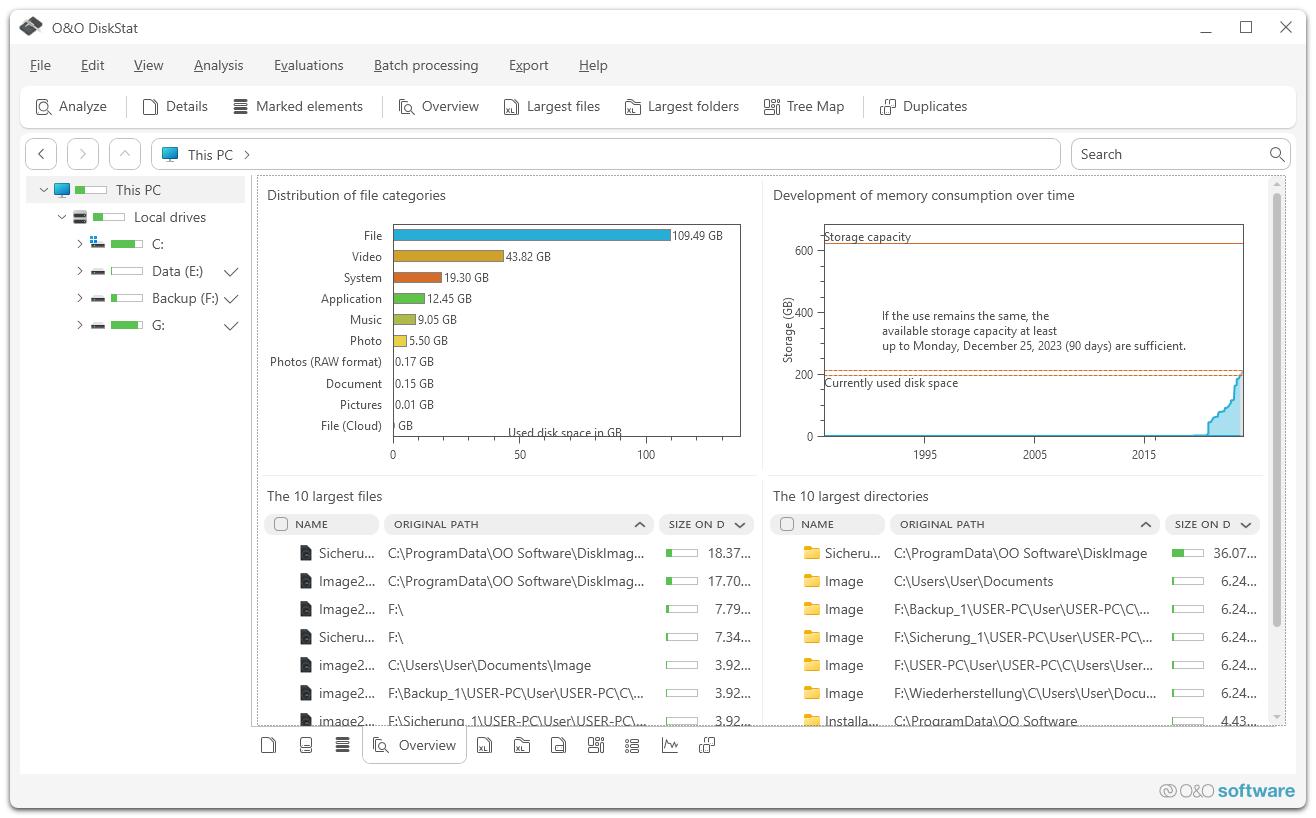
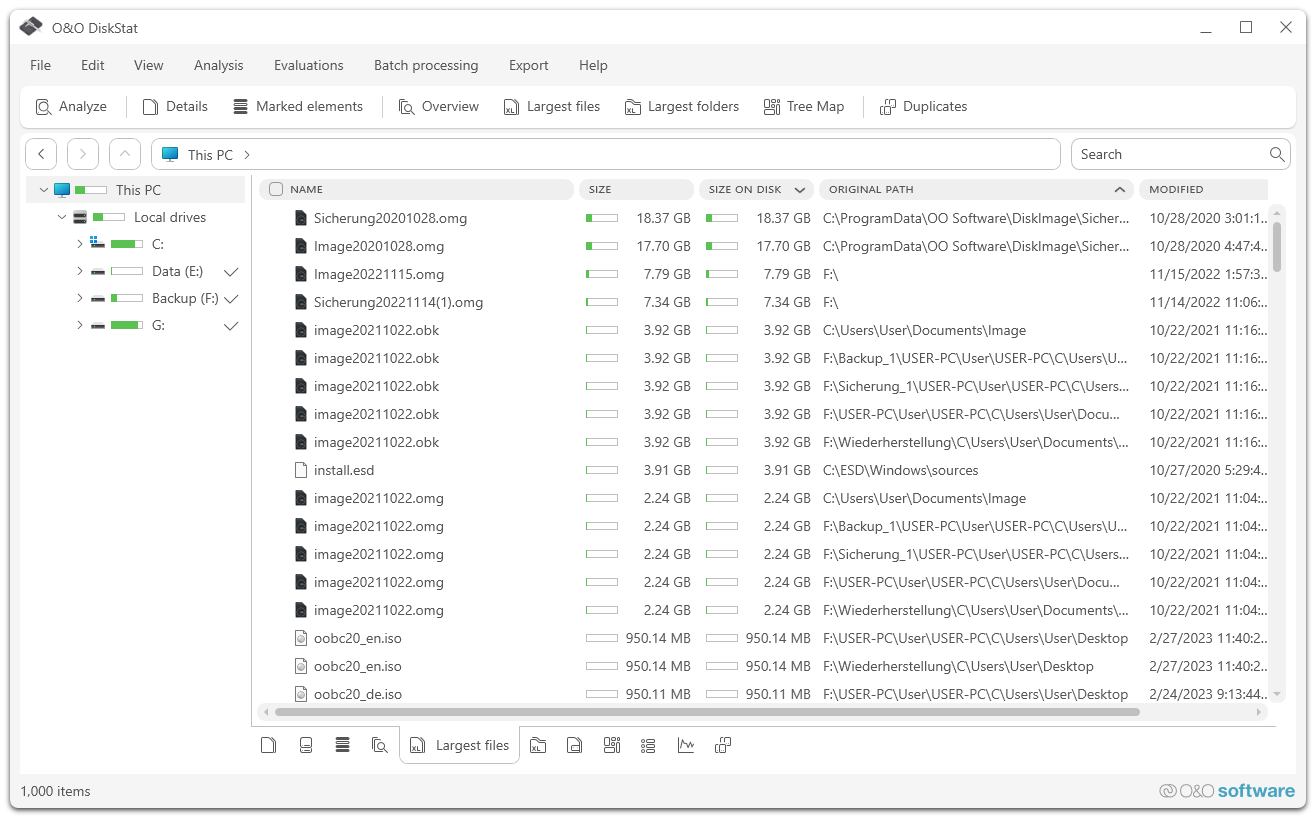
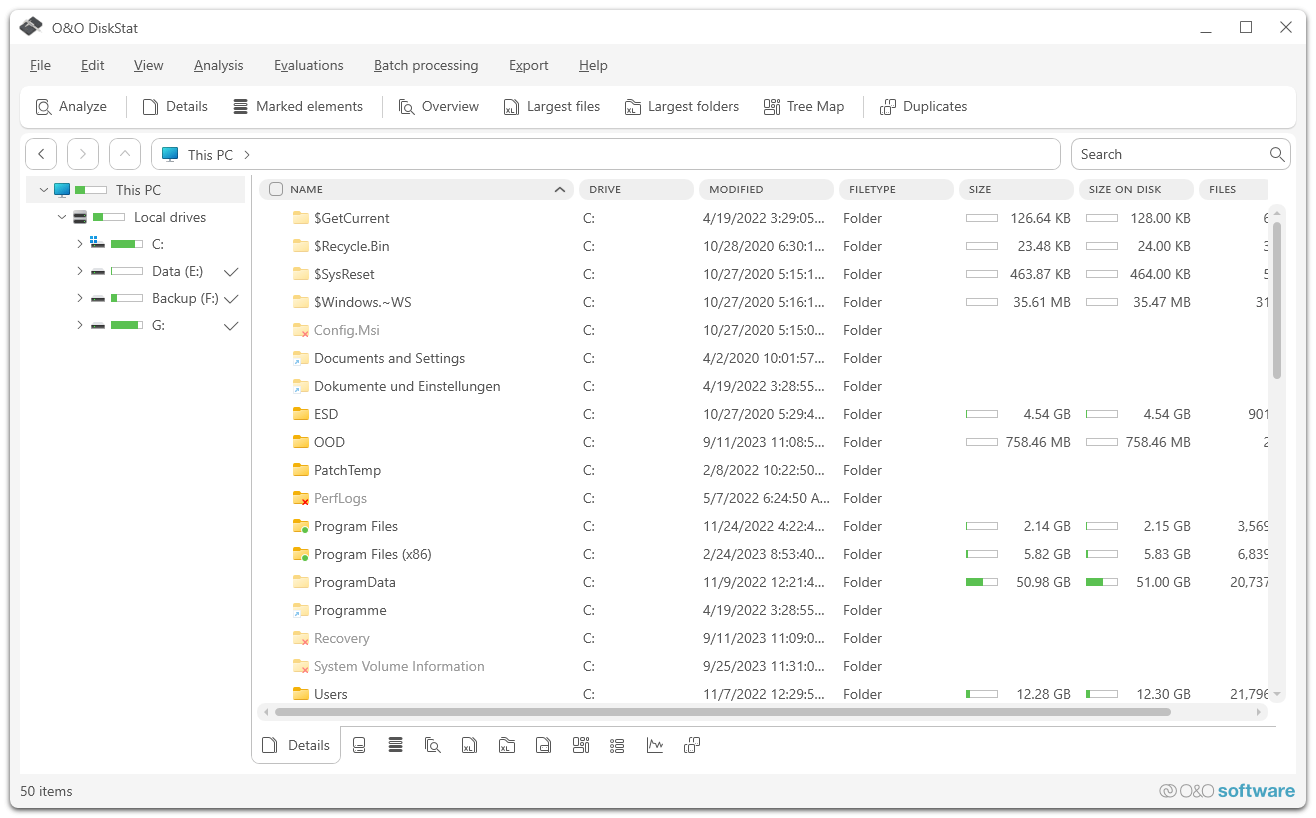
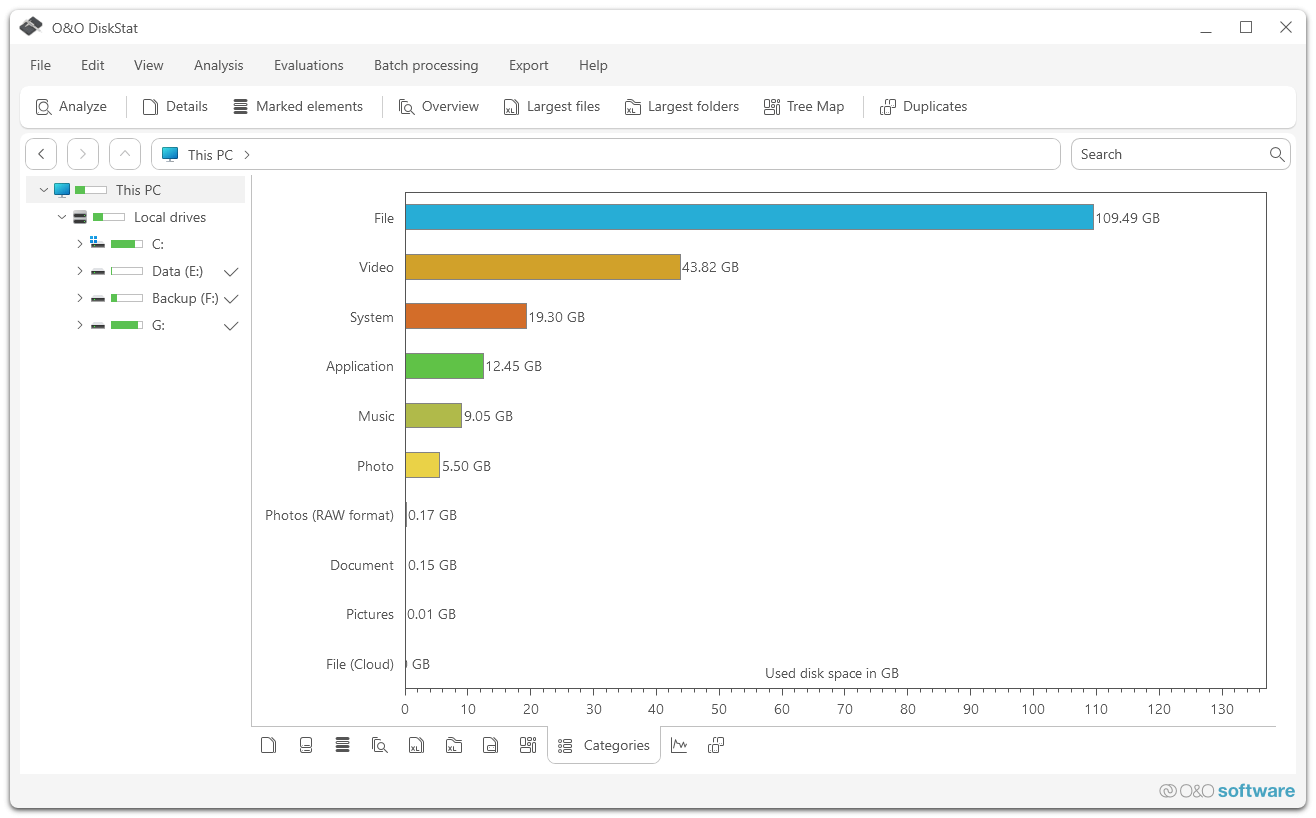
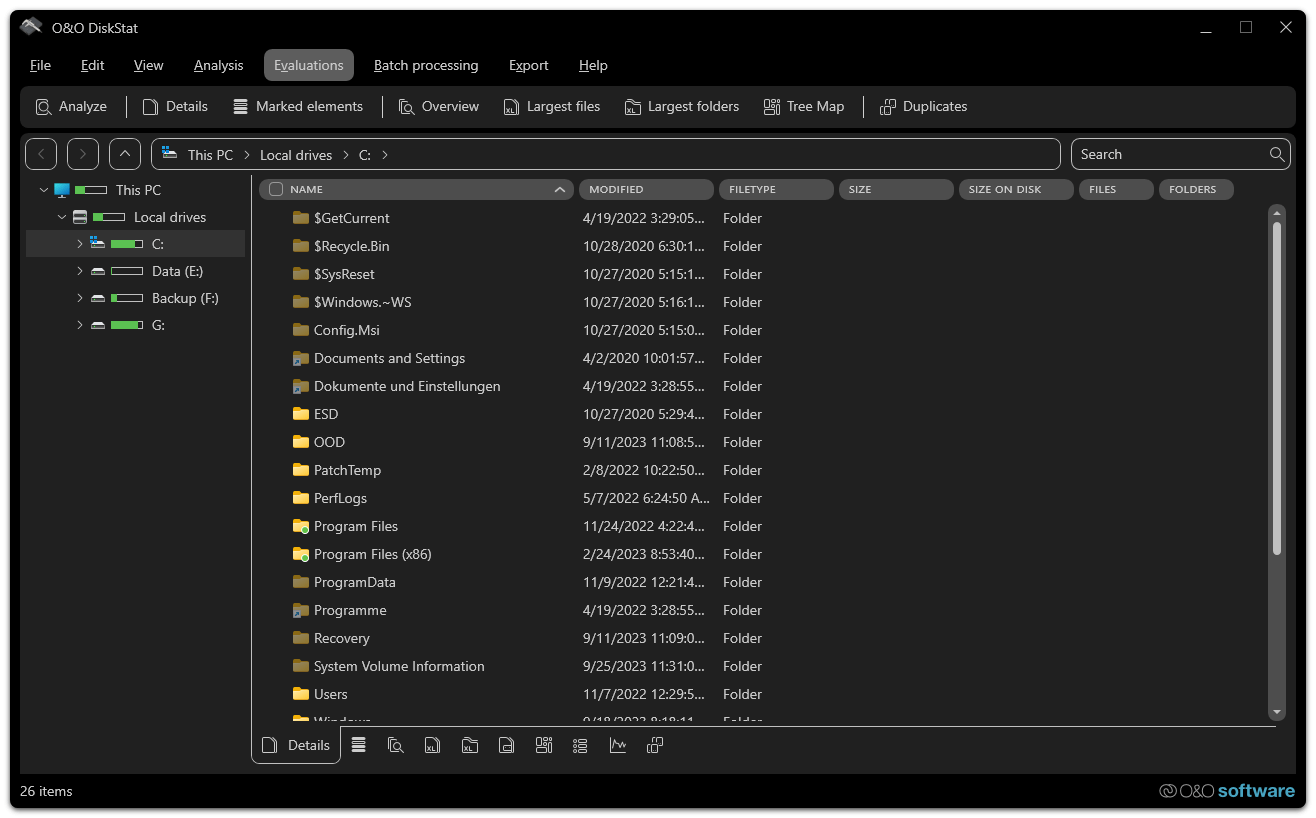
O&O DiskStat 4 gives you a quick overview of how your hard disk is being used. This makes it easy to search for files and folders that are taking up valuable hard drive space and are slowing down the computer. Similar to Windows Explorer, the versatile tool offers an intuitive interface and a variety of options for searching for memory hogs.
Batch processing of files and directories
O&O DiskStat offers you a convenient way of noting multiple files and directories across directory and drive boundaries and moving, copying or deleting them in a single run. These processes can also be logged. An additional option for uninterrupted running of the process is the handling of existing files and interaction in the event of errors.