O&O DiskImage 22 Premium
Protect your valuable data
 30-day money back guarantee

 30-day money back guarantee
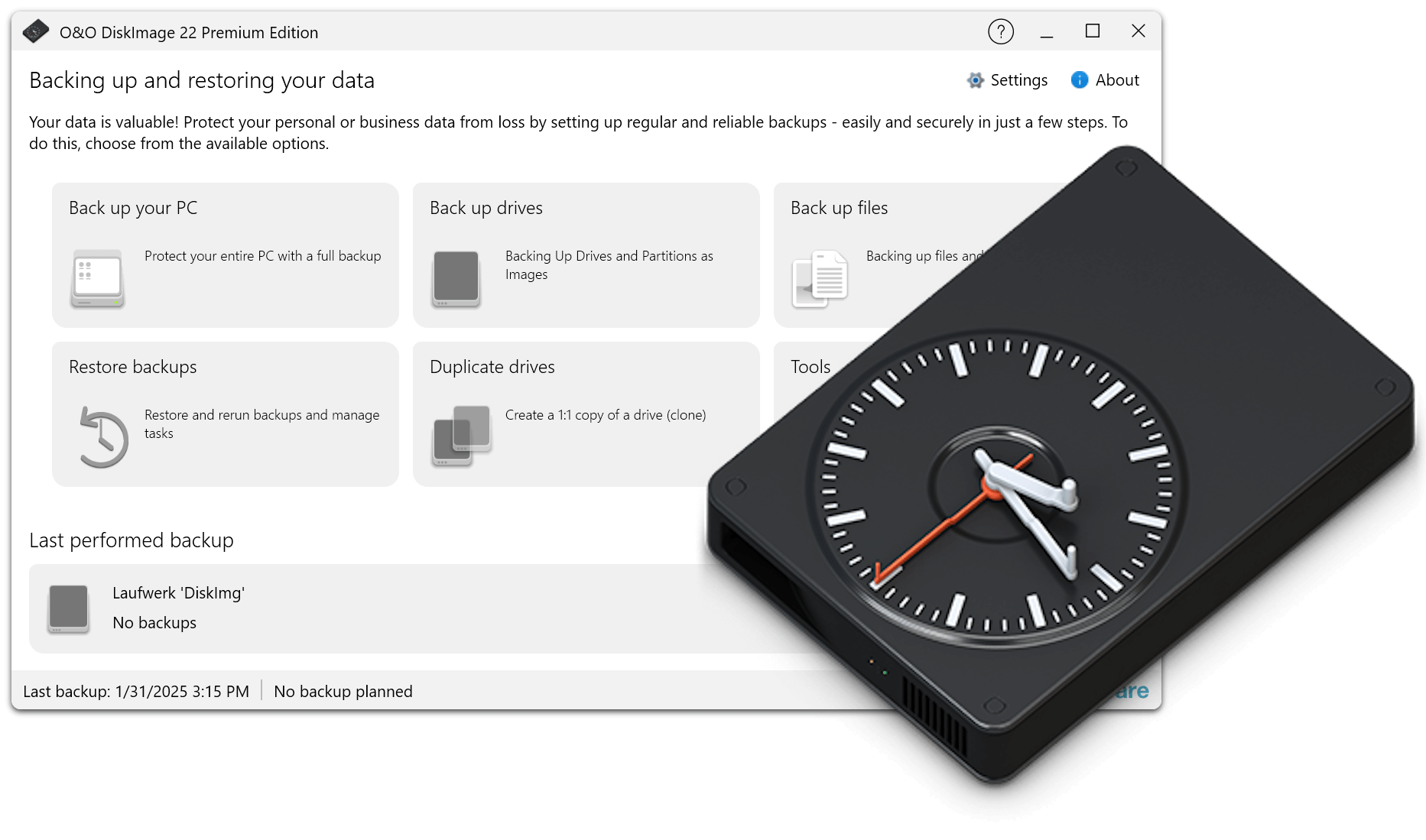
With O&O DiskImage 22 you can quickly and conveniently create a data backup of the entire computer, your hard disks and partitions. Individual files and directories can also be easily backed up as backups. Or simply clone your hard drive to a reserve hard drive to be covered just in case. Of course, SSD (Solid State Disk) drives, GPT disks and current UEFI system configurations are also supported. A backup program is the most important software on your PC!
Regular data backup of one’s own data is still a neglected topic for many PC users. But at the latest with the first data loss due to a software, hardware or user error, it quickly becomes clear how valuable a reliable and up-to-date data backup can be.
In the event of data loss, a backup previously created with O&O DiskImage will quickly make your backed up data available again with just a few mouse clicks – even if Windows no longer starts.
With drive-based backup, all contents of the selected disk are stored in a backup file. With a full backup of the system hard drive, the entire operating system, as well as the installed programs and settings are backed up. This not only protects irreplaceable files, but also saves you the tedious reinstallation and setup of all programs and the Windows operating system in an emergency.
Restoring your data backup is child’s play with our backup software O&O DiskImage: simply boot the previously created boot medium (USB stick), select an existing backup and off you go. Our hardware-independent recovery is already included, so you can transfer your old backups 1:1 to a new machine. New hardware is automatically detected and the settings in Windows are carried out automatically.
The unique fortress mode of O&O DiskImage 22 Premium allows the application to run in a completely isolated and secured Windows environment, so that backups can be performed without the influence of other applications. Direct forensic backups are also possible, which freeze the current state of all memory sectors of the system and map it exactly.
O&O DiskImage 22 Premium offers two options: you have previously integrated it into the Windows rescue environment with the fortress mode, so that you can start it directly on the PC. Or you have created a boot medium beforehand, which you then start externally to restore the backup of the machine. Both options complement each other and offer maximum flexibility: restore to the original machine or restore to new hardware.
O&O DiskImage 22 offers comprehensive support for working with virtual machines. You can now create incremental and differential backups of virtual disks, merge them, and mount them as drives. This allows you to access your backed up files and continue working within seconds with an existing backup.