• Backup e trasferimento dati
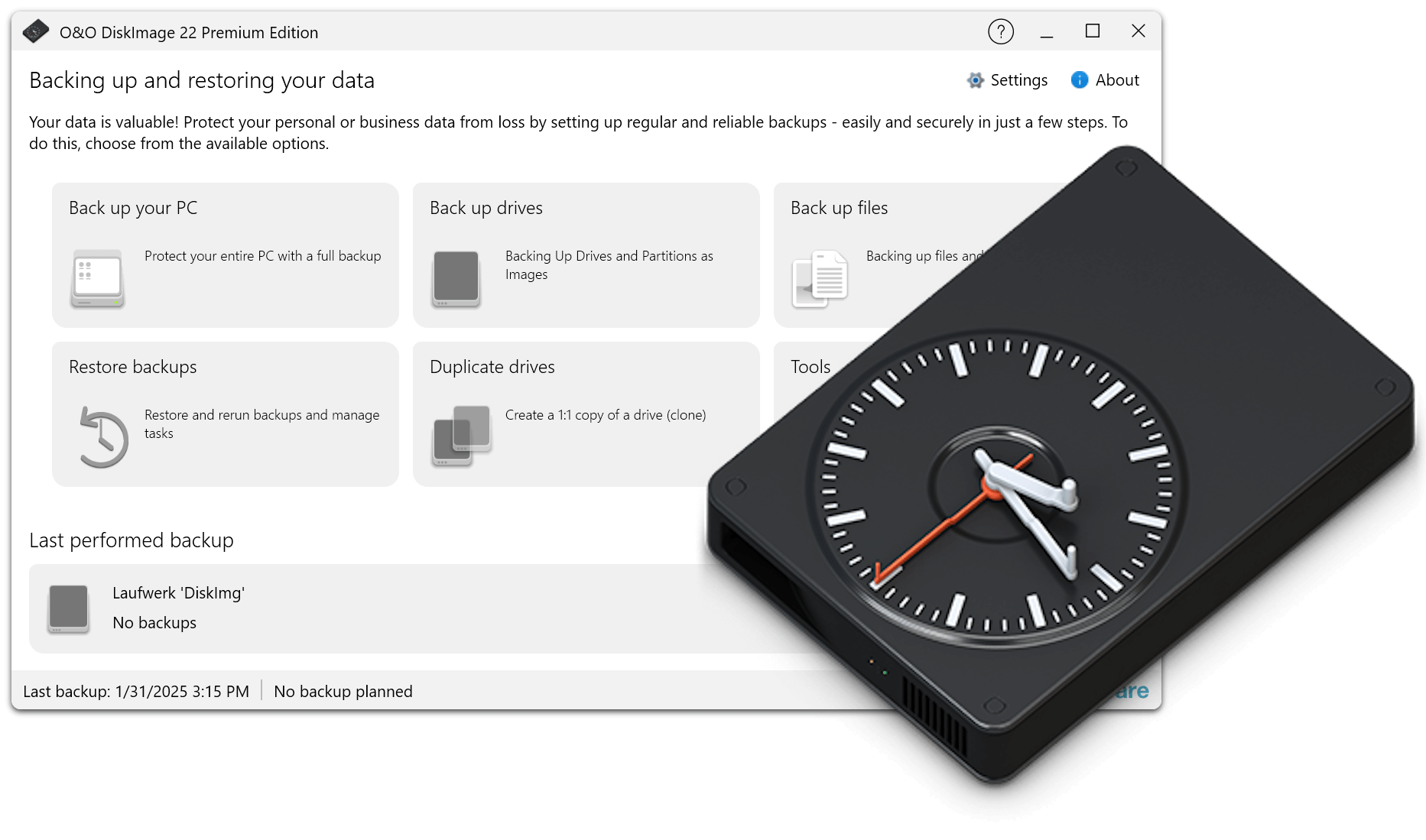
      • O&O DiskImage Backup professionale dei dati per i tuoi PC
      • Recupera dati e sistemi
      • O&O DiskRecovery Recupero professionale dei dati semplificato
      • O&O BlueCon Ripristino di emergenza quando un PC o server non si avvia più
      • Migrazione PC Windows 11
      • Migration Kit for Windows 11 La migrazione PC facile
      • Ottimizza i sistemi
      • O&O Defrag Accelera il tuo PC Windows
      • O&O DiskCommander Analisi del disco e test di backup
      • Soluzioni cloud
      • O&O Syspectr Soluzione gratuita di gestione IT dal cloud
      • O&O FileDirect Invia file. Facilmente. In modo sicuro.
      • Proteggi dati e sistemi
      • O&O SafeErase Cancellazione sicura dei dati
      • Freeware
      • O&O ShutUp10 Strumento anti-spia per Windows 10 e 11
      • O&O RegEditor Modifica del registro di Windows
      • O&O AppBuster Rimuovi le app indesiderate
      • O&O Lanytix Analisi rapida e semplice della rete nella LAN
      • O&O DeskInfo Tutte le informazioni di sistema importanti direttamente sul desktop
      • NOVITÀ: O&O ToolBox I nostri prodotti migliori in
        un pacchetto a un prezzo speciale!
      • Visualizza tutti i prodotti Scopri tutti i nostri strumenti per Windows
      • Download Ottieni applicazioni di installazione e portabili
      • O&O Blog Rimani aggiornato con il nostro blog
      • Soluzioni aziendali Vantaggi per la tua azienda
      • BACKUP E RIPRISTINO DATI
      • Crea backup del PC
      • Ripristina il sistema
      • Backup automatico dei dati
      • O&O DiskImage Enterprise Backup e ripristino del sistema a livello aziendale
      • RECUPERA DATI E SISTEMI
      • Recupera file eliminati
      • Recupera i dati dopo un crash del sistema
      • Ripara PC che non si avviano
      • GESTIONE IT E MONITORAGGIO
      • Monitora PC e server da remoto
      • Gestisci dispositivi Windows centralmente
      • Automatizza la gestione dei sistemi IT
      • ANALIZZA E OTTIMIZZA I SISTEMI
      • Analizza unità e dati
      • Migliora le prestazioni del sistema
      • Ottimizza Windows
      • PROTEZIONE DEI DATI E CANCELLAZIONE SICURA
      • Elimina i dati in modo sicuro
      • Configura la privacy di Windows
      • Controlla la telemetria di Windows
      • TRASFERISCI DATI E MIGRA IL PC
      • Migra il PC su un nuovo computer
      • Trasferisci file in modo sicuro
      • Condividi dati tra dispositivi
      • Visualizza tutte le soluzioni Scopri tutte le nostre soluzioni per Windows
      • O&O Blog Rimani aggiornato con il nostro blog
      • O&O PowerPack Enterprise La soluzione completa per i vostri server e PC a un prezzo conveniente!
      • Risorse
      • Documentazione Documenti relativi ai prodotti O&O
      • Guide utente online Leggi i manuali online
      • Download Archivio download
      • Whitepaper Studi e whitepaper
      • FAQ Domande frequenti
      • Pronto soccorso Pronto soccorso in caso di perdita di dati
      • Ottieni supporto
      • Panoramica Le nostre offerte di servizio
      • Registrazione Registra il tuo prodotto O&O
      • Utenti di prova Supporto per utenti di prova
      • Clienti registrati Supporto per clienti registrati
      • Recupero licenza Reinvia la tua licenza O&O
      • Partner
      • Programma partner O&O I tuoi vantaggi come partner O&O
      • Partner O&O Partner O&O autorizzati nella tua regione
      • Azienda
      • Chi siamo Produttore leader di strumenti di sistema
      • Lanci di prodotti Elenco date di rilascio e versioni
      • Il Gruppo O&O Realizzato a Berlino. Realizzato in Germania.
      • Team Il nostro team di gestione
      • Contattaci Come contattare O&O
    • Contatto
    • Newsletter

Aziende Privato Partner

O&O DiskImage 22 Premium

Proteggi i tuoi dati preziosi

solo 49,90 €

Acquista ora
Scaricalo ora
Garanzia di rimborso di 30 giorni
O&O DiskImage 22 Premium - Proteggi i tuoi dati preziosi
Windows 10 Windows 11
Vuoi usare questo prodotto in un'azienda? Scopri di più qui.
  • Panoramica
  • Caratteristiche
  • Screenshot
  • FAQ
  • Supporto
  • What’s new
  • Aggiornamento
  • Acquista ora

O&O DiskImage FAQ

1. What is an Image?
An Image is a “copy” of your drive or partition. This “copy” contains all information taken from the original. A special feature of an image is that the file format is especially compressed and takes up much less disk space than the original. The more often you create images of your drive, the less you need worry about data loss. Should data on the original drive be lost or damaged, you can restore your last image with all its data onto your computer. With just a few clicks of the mouse, you can recover the original status of your drive before the last imaging.
2. What is a drive?
A drive is a reserved area of the hard disk. Multiple drives can be found on a hard disk. In the following text, the term “drive” will be used to depict (single) partitions as well as logical drives in expanded partitions. Drives are used, for example, to separate documents from programs. A division in two partitions has become generally accepted.

  • Drive C: for operating systems and programs
  • Drive D: for documents, e.g. photos, Office documents, music, etc.

This makes it easier to image data using data imaging products such as O&O DiskImage.

3. What do I need an Image for?
In the event of an emergency, many users try to protect their digital photos, office files or videos by simply making a copy of the data and saving it to an external hard disk, CD or DVD. Problems then arise in the course of time when folders are changed and items deleted in the false assumption that a copy exists elsewhere.

The huge advantage with an Image is that it takes up much less space than a copy of your data. Using special algorithms, it is also able to recognize and save just the changes made since the previous image – so-called follow-up images. This way you can easily manage your Images and when disaster strikes, simply restore your lost data with a few mouse clicks.

4. How can I find out which drives (partitions) my data is stored on?
For imaging and restoring, it is important to know which drives (partitions) your data is saved on. Generally you can find out over the context menu of a folder or file under Properties, e.g. D:My filesHoliday.

  • Note: Data saved on your Desktop are normally on drive C:, the system partition. Please be aware that you are unable to restore a system partition with O&O DiskImage Express. If you wish to image data from the Desktop with O&O DiskImage Express, please move the data to another partition, e.g. your data partition.
  • Note on the shortcut symbol: The arrow symbol indicates a shortcut, meaning the data itself is not stored at this location, rather the symbol acts as a “link” to the data. In the context menu you can see where the content of the folder is stored, e.g F:Fotos.

If you delete the symbol, you only erase the shortcut to the data, and not the data itself.

5. When and how often should I make Images?
  • You should image an intact system
  • We recommend regular imaging (once a month minimum). The more regular you carry this out, the more up-to-date the data is contained within those images
6. Which drives should I Image?
  • System drive (Windows), mostly Drive C:
  • All remaining data drives where private and business data, e.g. customer data, photo collections or music is stored.
7. Where should I store my Image?
  • Not on the same hard disk where the imaged drive is located
  • Ideally on an external hard disk
  • DVD
8. Do I have unlimited use of all functions with the trial version?
The trial version is fully functional and has no restrictions
9. When do I need the bootable CD from O&O DiskImage?
  • For restoring the system partition.
  • When your operating system will no longer start.
10. Can I carry on working during the imaging procedure?
O&O DiskImage does not block drives by default during imaging. You can therefore continue working and make changes. The working memory buffer is however restricted. You can see how much is available in the Cache Status Display. See User’s Guide.

Note: To maintain the maximum available working memory buffer, please close all applications before and during the procedure, for example defragmentation or copy processes.

Important: Should you go over the available working memory, the current changes will be written direct to the source drive. This makes the image inconsistent and may render it unusable. In such cases you should load the image after the procedure is finished and check it for errors.

11. Can I still change the image retrospectively?
Under Tools you can find the function Convert Image File. This enables you to change certain properties and content of the image retrospectively – see User’s Guide”.
12. Can I just extract certain parts from an Image?
Example: I have created an image of several drives but want to create a separate image of just one of those drives. Follow the instructions below:

  • Under Tools select Convert Image File.
  • Select the image using Add and then select the drive you wish to separately image.
  • After confirming, click Start.

A new image will now be created. The old image remains unaltered.

13. Which Windows versions are compatible with O&O DiskImage?
The O&O DiskImage Premium and Professional is compatible with 11 e 10. The O&O DiskImage Server Edition supports 11, 10, Server 2016, Server 2019, Server 2022 e Server 2025.
14. How do I use “O&O DiskImage To Go” to boot a system?
Connect the O&O DiskImage To Go boot and backup media containing the backup to be restored to your computer. Start the computer (you may need to change the boot order in the BIOS to start from the external boot and backup media, please refer to the operating instructions of your computer / motherboard) with the O&O DiskImage To Go boot and backup media. On the boot medium start screen that opens, please click on the “1-Button Restore” icon. O&O DiskImage automatically detects the backup on the connected O&O DiskImage To Go boot and backup media and offers you the option to restore this backup. Simply follow the instructions in O&O DiskImage to restore the backup to your computer within a very short time. Of course you can also restore the backup on a new computer, for instance if you have replaced your old PC.
15. What is the Fortress Mode and how do I use it?
Fortress Mode is a unique feature in O&O DiskImage 21 Premium Edition that provides maximum isolation and security when performing backups.

When enabled, Fortress Mode allows the software to run in a completely isolated Windows environment, ensuring that backups are created without interference from other applications or processes. This isolation makes it possible to perform forensic-level backups, capturing an exact image of the current state of all system storage sectors.

You have two ways to use Fortress Mode:

Integration into the Windows Recovery Environment (WinRE):
Fortress Mode can be integrated into your system’s recovery environment, allowing you to launch O&O DiskImage directly from your PC, even if the main Windows OS is not functioning properly.

Bootable Medium Creation:
You can also create a bootable USB or CD/DVD containing O&O DiskImage. This lets you boot the software externally and perform backups or restorations independently of the installed operating system.

Both options provide full flexibility—whether you’re restoring your original system or transferring your backup to new hardware.

Chi siamo Newsletter Per i partner Contatti
I nostri prodotti Ordina Download Proteggere la tua sicurezza - Garantire la tua privacy
Supporto FAQ Stato della piattaforma Notizie e versioni
Impegno sociale Comunicati stampa O&O Labs Il Gruppo O&O
© 1997-2026 O&O Software GmbH, Berlin
Informativa sulla privacy Termini e condizioni EULA Annulla abbonamenti Impronta