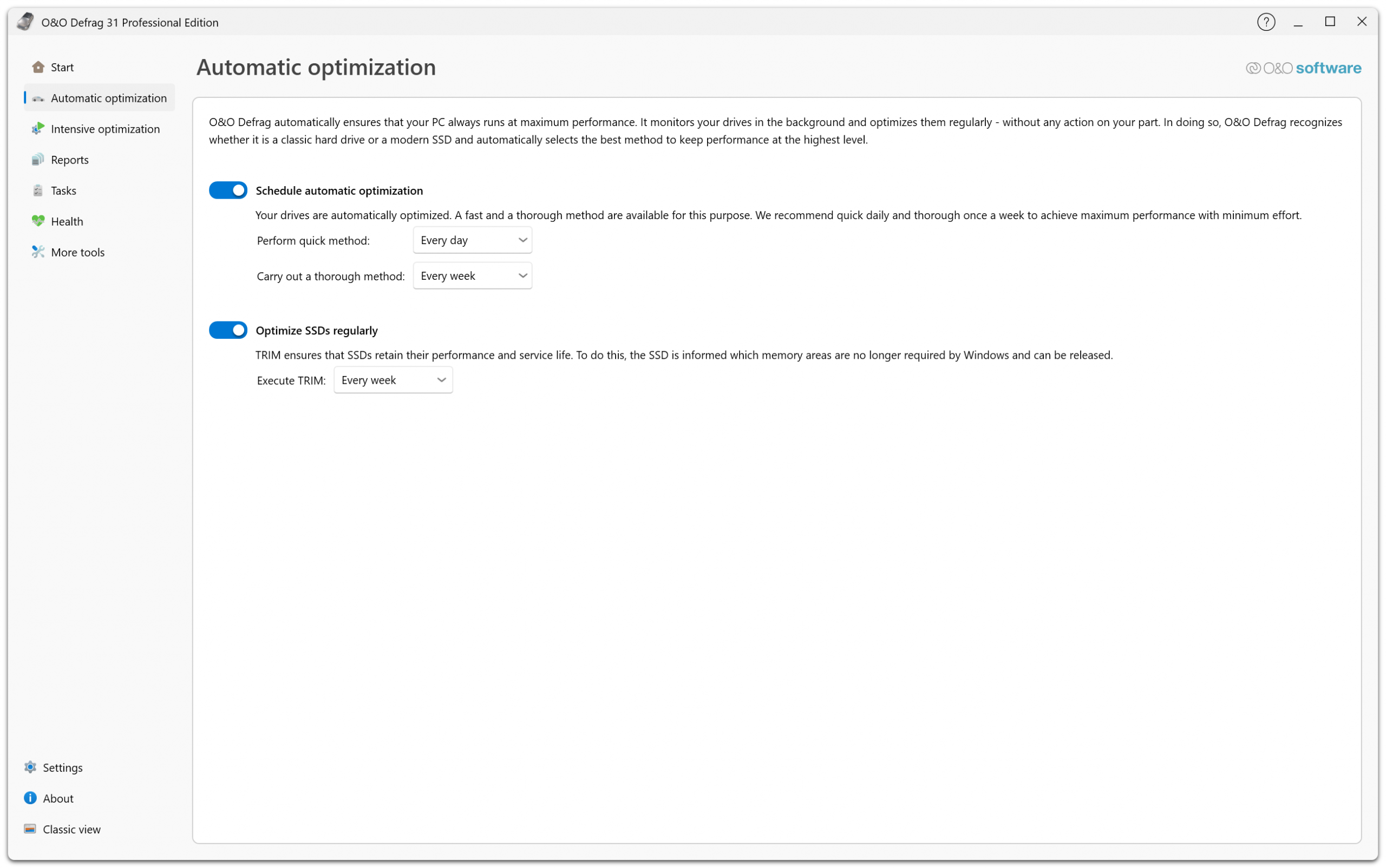
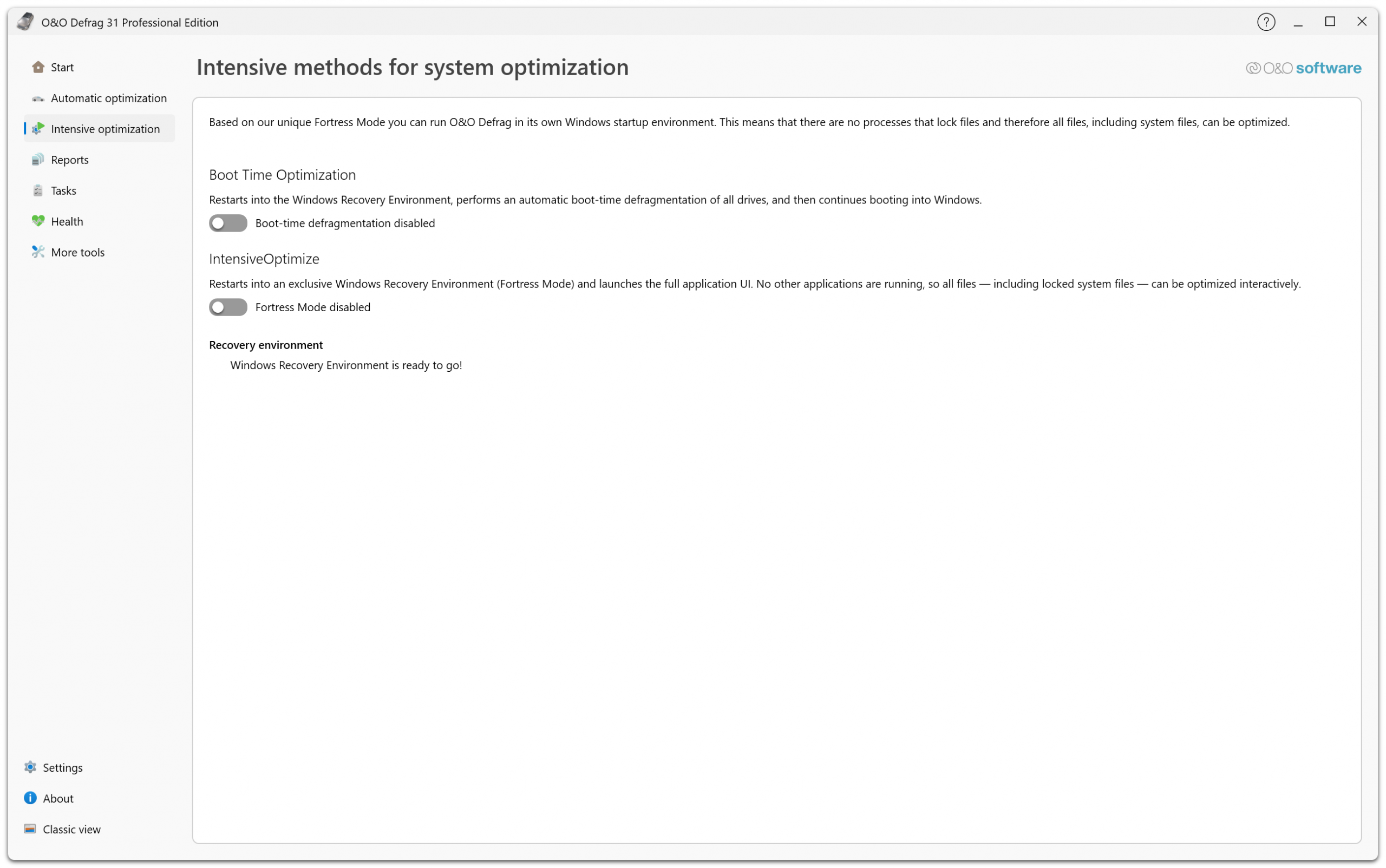
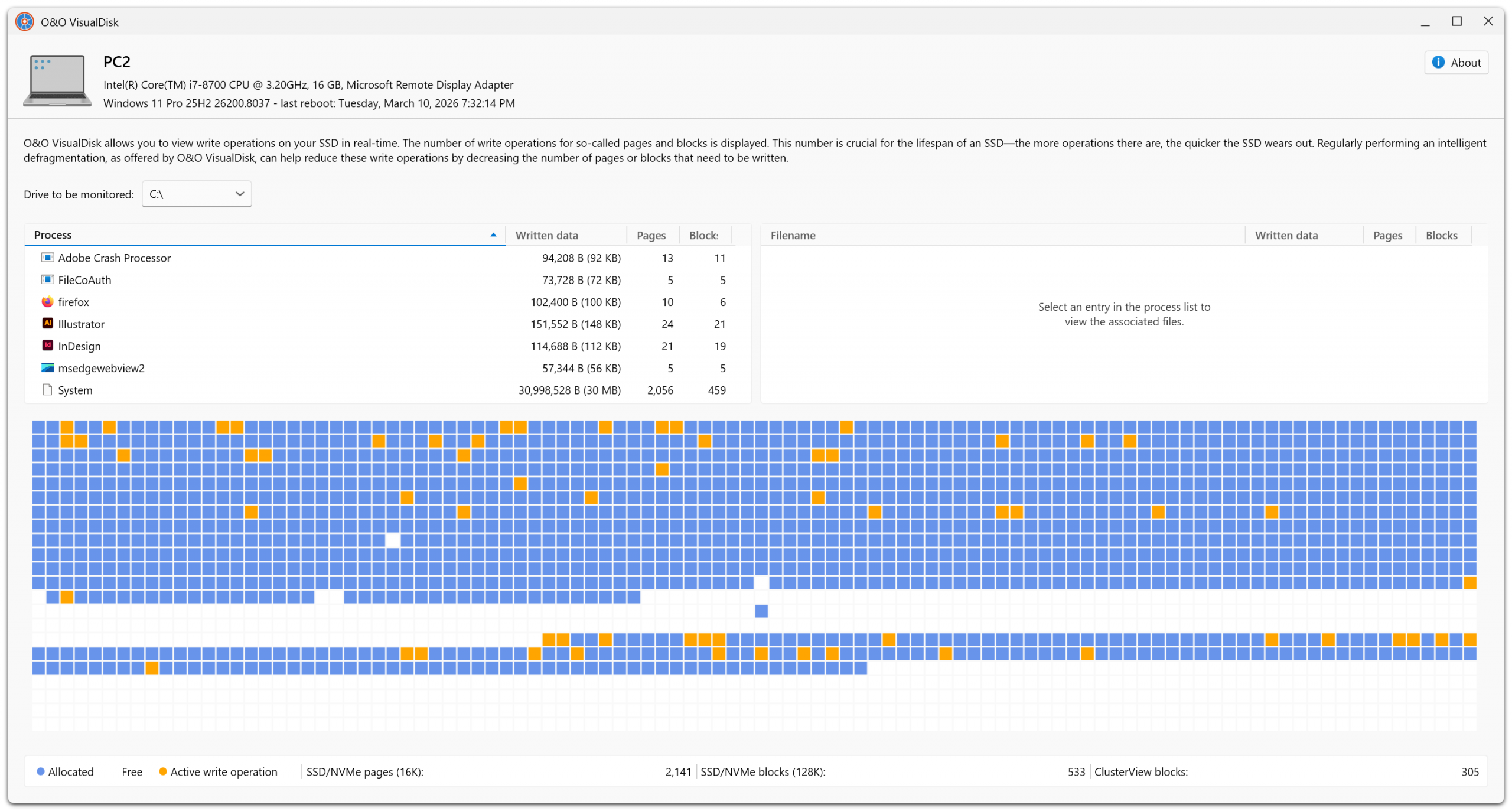
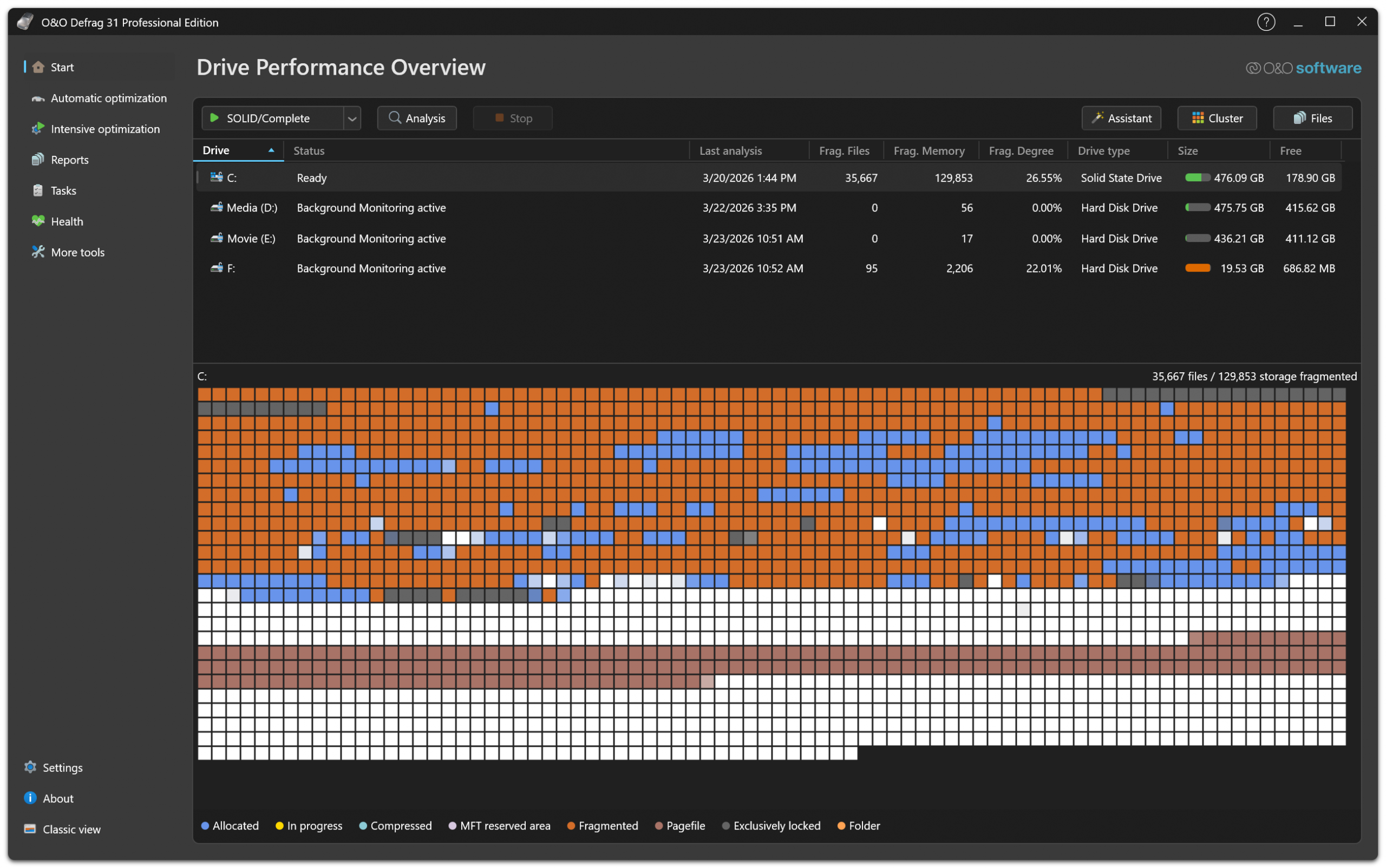
1. Quick configuration makes working with O&O Defrag easy.
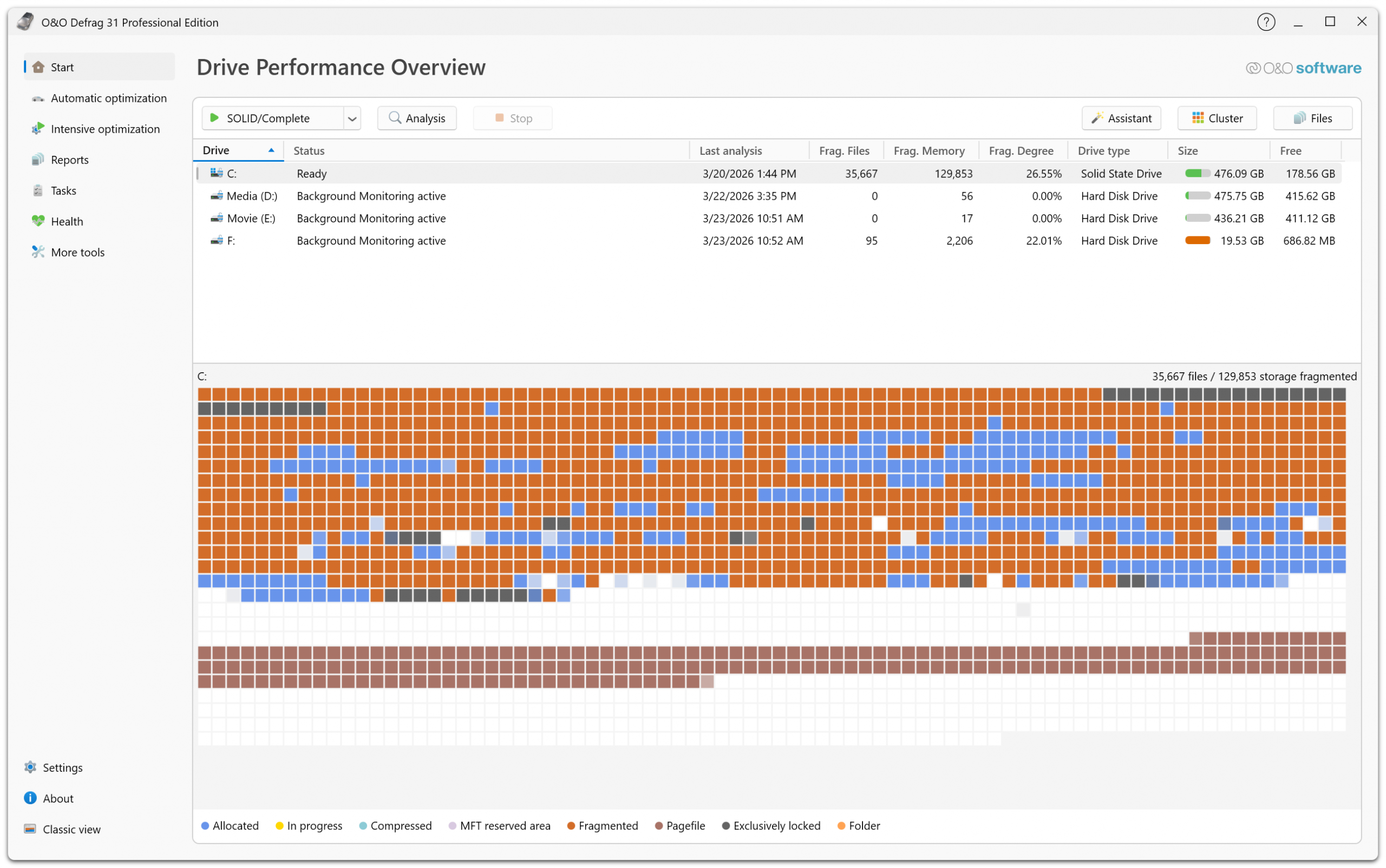
2. Block view of several drives simultaneously.
3. Block view before and after defragmentation for comparison purposes.
4. The History view displays the success of O&O Defrag over weeks and months.
5. The status display gives an overview of the job at hand.
6. The drive status view graphically displays the degree of fragementation.
7. File status shows you which files are most heavily fragmented.
8. The job assistant lets you determine which drives should be regularly defragmented.
9. You can file your data according to usage and size onto your hard disk (Zone Filing).
10. The O&O ActivityMonitor lets you restrict the amount of system resources to be used.

O&O Defrag 15

O&O Defrag for Companies

Documents

O&O Defrag 15 Data Sheet

O&O Defrag 15 User's Guide

O&O Defrag and SSD

O&O Defrag and the Windows 7 Defragmenter: A comparison

Read more in O&O Blog:

Which defragmentation method is the best?
9 December 2011 - Tweet We get asked this question a lot by our customers. The answer is unfortunately not so simple. If there were only one “best method”, then we would only offer this one and get rid of all the others! In truth, each method has its own specific application to which it is best suited.
What are the benefits of periodic defragmentation?
18 October 2011 - Tweet This question comes to us a lot, especially in relation to newer (supposedly faster) hardware. “Does defragmentation even make sense nowadays? My computer is already very fast!” The correct answer is really: no and yes. No, there’s really no need for defragmentation if a user is happy with the computer’s speed.
Twitter
Facebook
YouTube Channel
Our Blog Beyound O&O
RSS Feed