O&O AutoBackup 8
Automatically back up and synchronize your data
 30-day money back guarantee

 30-day money back guarantee
Photos, documents, videos, and personal files are among the most important data on your PC. That makes it all the more important to keep an up-to-date copy of them. With O&O AutoBackup, this is especially easy: once configured, the software automatically takes care of backing up and synchronizing your selected data.
You simply decide what should be backed up, where the data should be transferred, and how the backup should be performed. O&O AutoBackup takes care of the rest. This turns a task you would otherwise have to remember again and again into an automatic and reliable part of your everyday routine.
Reliable data backup should not depend on whether you remember to start it manually on a regular basis. That is exactly why O&O AutoBackup was developed. Select the files, folders, or partitions you want to protect, define the desired backup destination, and decide whether your data should be copied or synchronized.
Your backup tasks can then be executed automatically – for example, as soon as you connect the designated USB hard drive or USB flash drive to your PC. Connect the storage device, O&O AutoBackup recognizes the destination, and takes care of your data.
Many important files are no longer stored exclusively on the local hard drive. Documents, photos, and other personal data are increasingly stored in OneDrive and synchronized across different devices.
With O&O AutoBackup, you can also include your OneDrive data in your backup tasks. Locally available OneDrive files can be backed up and synchronized and integrated into a central backup strategy together with your traditional PC data. This gives you greater control over your important files – whether they come from a local folder or your OneDrive storage.
In addition to local drives, USB flash drives, and external hard drives, O&O AutoBackup also supports S3-compatible storage destinations. This gives you additional flexibility when choosing where your backups are stored and allows you to adapt your backup strategy to your individual requirements.
Local backups and remote storage destinations can therefore be combined in a useful way – for example, when important data should also be stored outside your own PC or location.
A backup should not only protect your files against loss, but also help prevent unauthorized access to sensitive content. O&O AutoBackup therefore provides encryption and obfuscation features for your backed-up data.
This allows confidential documents, personal files, and other sensitive data to be protected more effectively – especially when backups are stored on external or remote storage media.
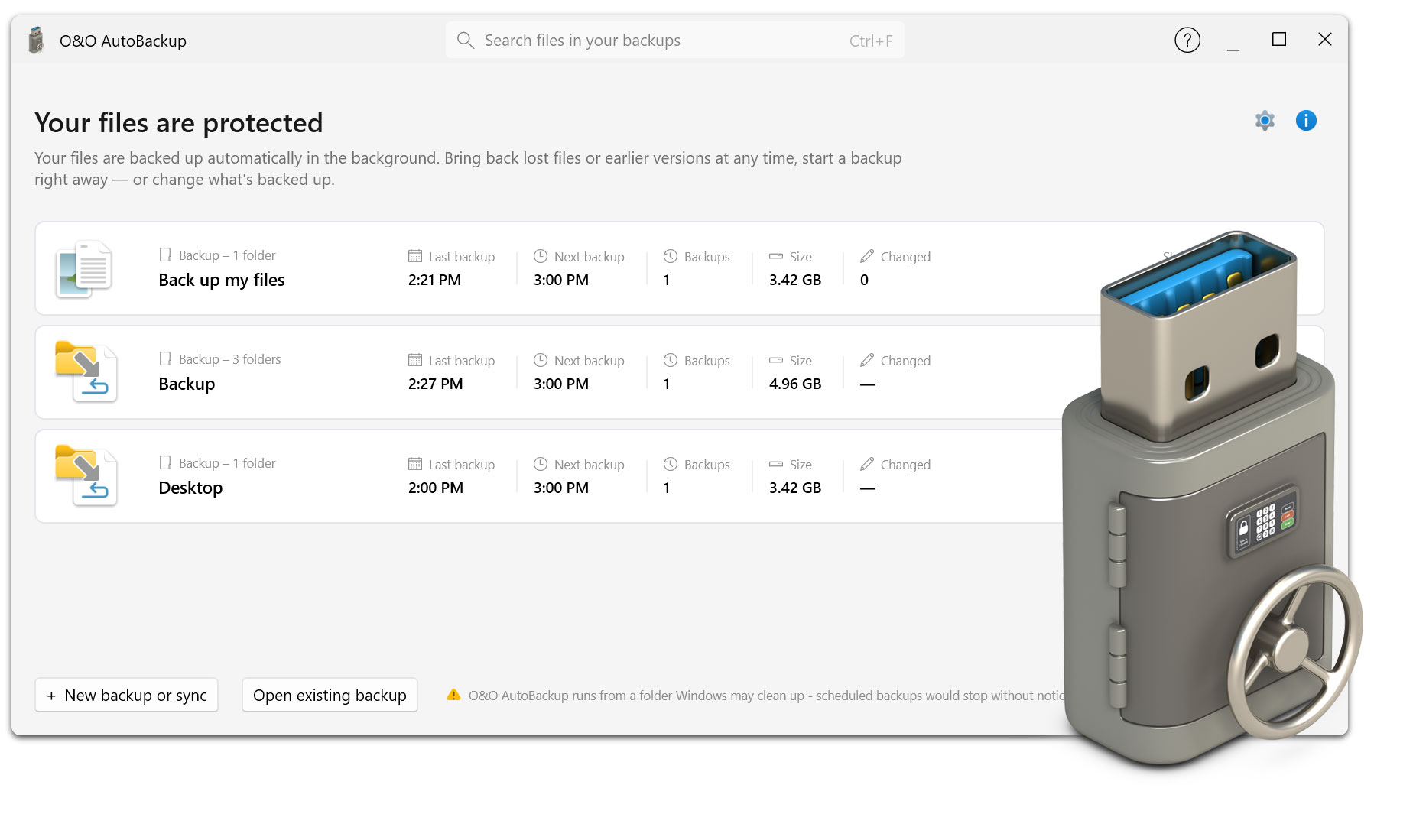
Data backup does not have to be complicated. That is why the user interface of O&O AutoBackup has been completely redesigned. A clear step-by-step workflow helps you set up new backup tasks quickly and easily.
You select the desired data, define the backup destination, and specify how the transfer should be performed. This means that even users without advanced technical knowledge can set up an automatic backup in just a few steps and adjust it at any time later on.
Not every backup has to work the same way. With O&O AutoBackup, you decide which method is best suited to your data. You can copy selected files and folders to the backup destination or synchronize your data between source and destination.
When copying, an additional copy of your selected data is created on the destination medium. Synchronization keeps the source and destination in the desired state according to the configured task. This makes O&O AutoBackup flexible enough for a wide range of backup scenarios.
The automatic detection of backup media is particularly convenient. If, for example, the external hard drive assigned to a backup task is connected to the PC, O&O AutoBackup can automatically execute the corresponding task.
You do not need to launch an additional program, copy folders manually, or remember to start a backup on a regular basis. This makes data backup particularly convenient for everyday use: simply connect the storage device and O&O AutoBackup performs the intended backup process.
Whether personal documents, photos, videos, project files, or OneDrive data: O&O AutoBackup helps you store important files regularly and reliably on an additional backup destination. Local drives, external storage media, and S3-compatible storage provide the flexibility required for different backup needs.
Once configured, the backup process largely runs automatically as part of your everyday routine. This means you no longer have to keep wondering whether your most important files have already been backed up.
O&O AutoBackup combines automatic backup and synchronization with easy operation and flexible storage destinations. You define once which data should be protected and how the backup should be performed – after that, O&O AutoBackup takes care of the recurring work for you.