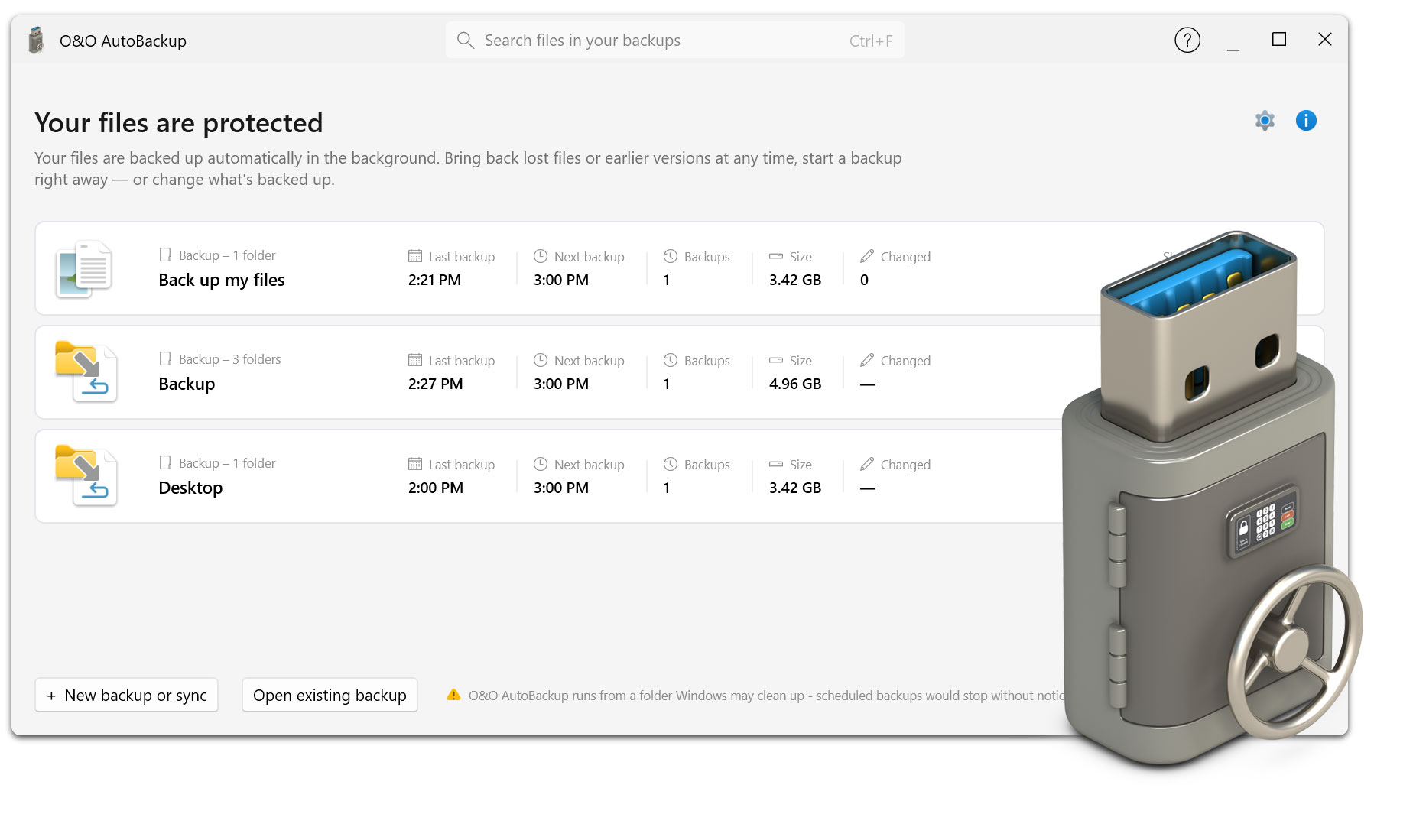
Here you will find helpful documents and tips on the use of O&O AutoBackup. The content provided helps you set up automatic backup and synchronization tasks, select appropriate storage destinations, and provide additional protection for important files. Whether it’s local data, external drives, OneDrive, or S3-compatible storage destinations, the following materials provide you with a sound guide for backing up your data easily and regularly.
1. What is O&O AutoBackup?
O&O AutoBackup is a software for the automatic backup and synchronization of important files and folders. You determine which data is to be backed up and which storage destination is to be used. O&O AutoBackup can then automatically execute the tasks set up for you.
2. What is the difference between O&O AutoBackup and O&O DiskImage?
O&O AutoBackup focuses on the simple backup and synchronization of selected files and folders. O&O DiskImage, on the other hand, is designed for comprehensive image and system backups and can back up and restore entire drives or complete Windows systems. O&O AutoBackup is particularly suitable if important personal or professional files are to be stored regularly and as easily as possible.
3. What data can I back up with O&O AutoBackup?
For example, you can include documents, photos, videos, project files, and entire folder structures in your backup tasks. This allows you to specifically determine which data is particularly important to you and should be stored on a regular basis.
4. Can O&O AutoBackup automatically back up my data?
Yes. This is precisely one of the most important functions of O&O AutoBackup. Once set up, backup tasks can be performed automatically. This means that important files do not have to be copied to another drive by hand over and over again.
5. Can a backup start automatically when I connect my external hard drive?
Yes. A backup medium can be assigned to a corresponding task. If, for example, the external hard drive or USB stick provided for this purpose is connected, O&O AutoBackup can automatically start the appropriate backup task. In everyday life, for example, it is often sufficient to connect the backup medium.
6. What is the difference between copying and synchronizing?
When copying, the selected data is additionally saved to the specified destination. During synchronization, data stocks between source and destination are compared with each other according to the task set up. Which method is more appropriate depends on how you want to use and manage your data.
7. Can I back up to an external hard drive?
Yes. External hard drives are particularly suitable as a backup destination for O&O AutoBackup. You can use a hard drive for your backup tasks and connect it to the PC when needed. O&O AutoBackup can detect the intended medium and perform the associated task automatically.
8. Can I also use a USB stick as a backup destination?
Yes. USB sticks can also be used as backup media. This is particularly suitable for smaller data sets or files that are also to be available on mobile devices. The prerequisite is that there is sufficient storage space on the USB stick for the selected data.
9. Can O&O AutoBackup back up OneDrive data?
Yes. With O&O AutoBackup, OneDrive data can also be included in backup and synchronization tasks. This allows important files from your OneDrive inventory to be backed up and integrated into your personal backup strategy along with local data.
10. Why should I back up OneDrive data additionally?
OneDrive syncs files between devices and Microsoft cloud storage, but it doesn’t replace an additional independent backup in every scenario. If files are accidentally changed or deleted, such changes can also be synchronized. An additional backup of important OneDrive data therefore offers another layer of protection.
11. Does O&O support AutoBackup S3-compatible storage?
Yes. O&O AutoBackup supports S3-compatible storage destinations. This allows you to include remote storage solutions in your backup strategy in addition to local and external disks.
12. What does S3 compatible memory mean?
S3 is a widely used interface for object-based online storage. In addition to Amazon S3, numerous other vendors and storage solutions offer an S3-compatible interface. O&O AutoBackup can use such compatible storage destinations for corresponding backup tasks.
13. Can I use local and online save destinations at the same time?
You can set up different backup tasks for different destinations. For example, a regular local backup on an external hard drive can be combined with an additional backup strategy on S3-compatible storage.
14. Can my backups be encrypted?
Yes. O&O AutoBackup offers options for encrypting secured data. In particular, confidential documents and personal data can be additionally protected from unauthorized access.
15. What does obfuscation mean?
Obfuscation serves to make stored information and structures less immediately recognizable. O&O AutoBackup offers this option as an additional protection function for backup stocks. For sensitive data, obfuscation can be combined with the available encryption features.
16. Does O&O AutoBackup have to be open all the time?
Once your backup tasks have been set up, the typical automated process does not require you to manually start a backup repeatedly. If, for example, a mapped backup medium is connected, O&O AutoBackup can automatically execute the intended backup process.
17. How often should I back up my data?
It depends on how often your data changes. If you create or modify important documents, photos or work files on a daily basis, you should create up-to-date backup copies accordingly frequently. The automatic execution of O&O AutoBackup makes it particularly easy to integrate regular backups into everyday life.
18. Where should I store my backups?
If possible, a backup should not be located exclusively on the same drive as the original data. At least one additional storage destination, such as an external hard drive, is recommended. For particularly important data, an additional copy on a spatially separated or S3-compatible storage destination may be useful.
19. What happens if my PC or internal hard drive fails?
If important files were previously backed up to a separate storage destination with O&O AutoBackup, an additional copy of this data is still available there. For the complete restoration of an entire Windows system, including the operating system and installed programs, we recommend an image backup with O&O DiskImage.
20. Does O&O AutoBackup protect against accidental data loss?
O&O AutoBackup helps to create additional copies of important data. This allows you to fall back on an existing backup stock if you lose the original files. It is crucial that the backup is performed regularly and stored on a separate storage destination.
21. Is O&O AutoBackup also suitable for users without previous technical knowledge?
Yes. O&O AutoBackup has been designed to be as easy as possible to set up. The redesigned user interface guides you step by step through the selection of the data to be backed up, the desired storage destination and the backup method. This allows automatic backup tasks to be set up even without extensive backup knowledge.
22. Can I set up several different backup tasks?
Yes. Different data stocks can be organized with their own backup tasks and suitable storage destinations. For example, you can back up personal documents to an external hard drive and use a separate sync or S3 backup task for other data.
23. Does O&O AutoBackup replace a full system backup?
No. O&O AutoBackup is designed for the convenient backup and synchronization of your important data. If you also want to back up Windows, installed programs, settings and complete drives and restore them completely after a hardware failure, an image solution such as O&O DiskImage is the right addition.
24. What is the easiest backup strategy with O&O AutoBackup?
For many users, an external hard drive that is used exclusively or mainly for backups is sufficient. You determine which important folders should be backed up and regularly connect the drive to the PC. O&O AutoBackup can then automatically execute the associated task. For particularly important data, it is also recommended to make another copy on a spatially separated storage destination.
 30-day money back guarantee