O&O Defrag 32
The optimization suite for Windows 11
 30-day money back guarantee

 30-day money back guarantee
Fragmentation and unnecessary data can cause even fast PCs to lose performance over time. When files are saved on traditional hard drives, they are often split into several parts and stored in different locations. This increases access times.
O&O Defrag analyzes your drives and uses the appropriate optimization method to ensure that your storage devices work efficiently. Traditional hard drives are defragmented, while SSDs are optimized using methods specifically developed for them.
O&O Defrag optimizes your drives automatically and according to the hardware in use. On traditional hard drives, related file fragments are reorganized and access paths are shortened. Specially developed optimization methods are available for SSDs and NVMe drives.
When used regularly, access times can be reduced and the overall performance of your Windows system can be improved. If desired, O&O Defrag can handle optimization fully automatically in the background, so you do not have to take care of it yourself.
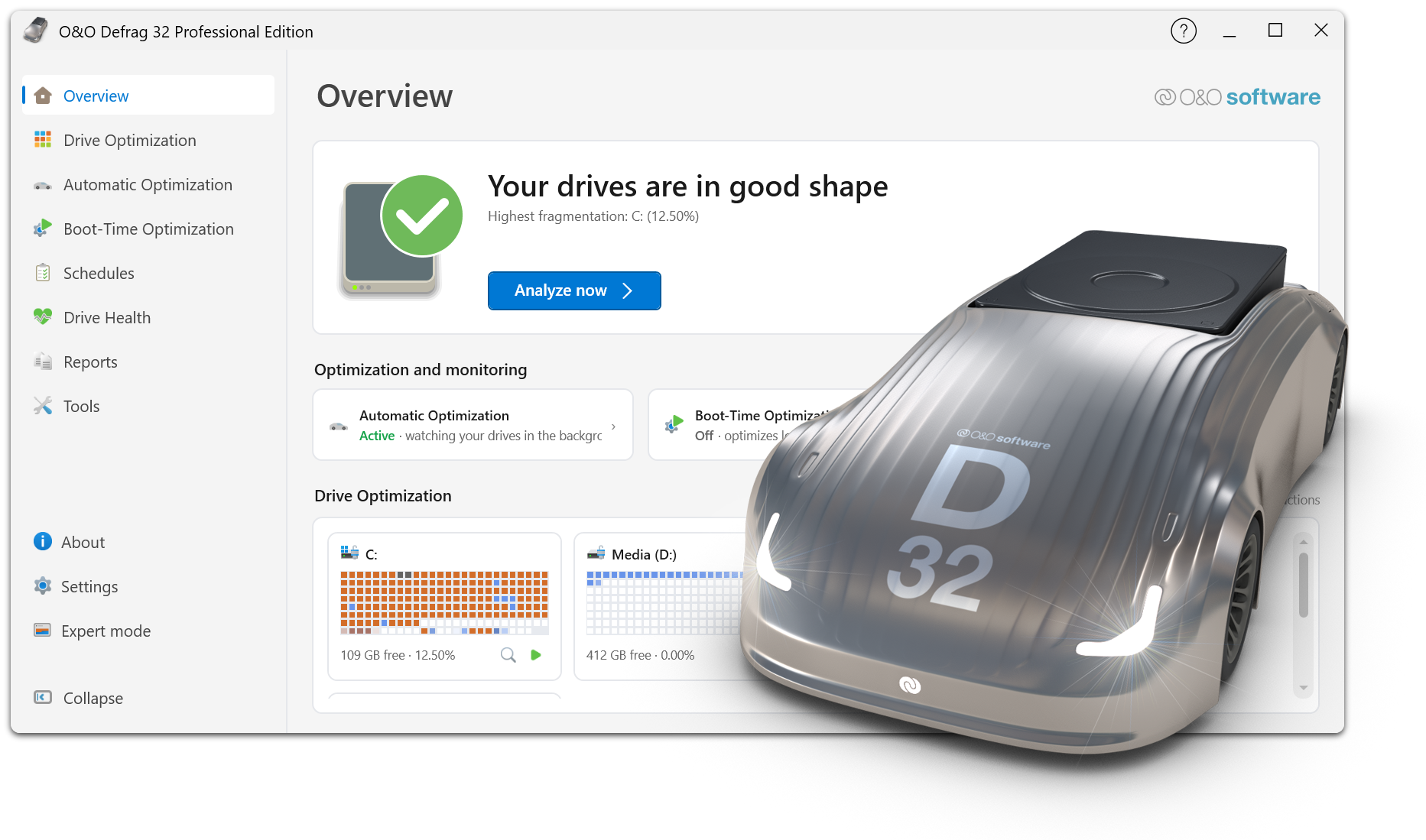
Now with an interactive step-by-step tour through the program as well as detailed reports, benchmarks, and recommendations. The new generation of O&O Defrag. The new Expert Mode allows you to switch back to the classic user interface at any time.
With Drive Health, you can see the condition of your SSDs, HDDs, and NVMe drives directly in O&O Defrag.
Clear ratings help you identify potential issues early and assess the condition of your storage devices more easily. In addition to optimization, you also receive important information about the drives on which your data is stored.
How much can optimization improve your own system? With O&O SpeedCheck, you can check the performance potential of your drive directly.
The benchmark simulates file access in fragmented and optimized states and compares the required access times. This gives you an easy-to-understand assessment of how optimization can affect drive performance.
O&O SpeedCheck therefore makes visible what is otherwise difficult to measure: the potential performance gain from an optimized data structure.
With O&O VisualDisk, write access on flash-based storage media such as SSDs and NVMe drives is clearly visualized.
You gain a better understanding of how your drive works and how optimization measures can affect future write operations. O&O VisualDisk helps you understand the behavior of modern storage devices and avoid unnecessary write activity.
O&O StartupManager provides a clear overview of all programs, tasks, and services that start automatically with Windows.
For each entry, you receive additional information, including its impact on startup time. Unnecessary programs can be disabled with just a few clicks, and faulty startup entries can be detected and removed.
This can reduce your computer’s startup time and make Windows ready for use faster.
Boot-time optimization allows O&O Defrag to optimize files that cannot be accessed exclusively while Windows is running. These include locked system files and other critical files.
For particularly extensive optimization tasks, O&O IntensiveOptimize is also available. Optimization takes place in a separate Windows environment with access to user and system files – even on BitLocker-encrypted drives.
Tasks in O&O Defrag can be scheduled, adjusted, and managed easily. Multiple drives can be analyzed simultaneously, and the appropriate optimization methods can be selected quickly.
Clear reports then show which measures have been carried out and how optimization has progressed.
Automatic optimization works in the background and adapts to the current system load.
O&O Defrag offers both a modern interface reduced to the essentials and the classic view with extensive configuration options.
In the classic view, experienced users can define their own defragmentation and optimization strategy. You can switch between both views at any time.
O&O Defrag can check your hard drives and SSDs for inconsistencies that may cause problems in Windows. Among other things, the Windows component store and important system files are examined.
Once the check is complete, you can see whether any errors were found. Many detected problems can then be corrected directly using the integrated repair function.
Over time, a PC accumulates numerous files that are no longer needed. Temporary files, internet caches, and other data can take up a considerable amount of storage space.
The integrated O&O DiskCleaner helps you conveniently remove this unnecessary data. Additional categories provide a clearer overview, and multiple drives can be cleaned at the same time.
This frees up storage space and reduces unnecessary data on your system.
Programs that are no longer needed waste storage space and, in the worst case, can even pose a security risk.
O&O Defrag provides a clear overview of the applications installed on your system. Programs you no longer need can then be conveniently removed.
With O&O AppBuster, you can also conveniently manage and uninstall preinstalled and built-in Windows apps.
O&O Defrag can handle the optimization of your drives completely automatically without unnecessarily affecting your daily work.
You can specify when and under which conditions optimization tasks should be performed. O&O ActivityMonitor takes the current system load into account and reduces O&O Defrag activity when other applications require your PC’s performance.
This keeps your system continuously optimized without requiring regular manual intervention.
Not every drive requires the same treatment. O&O Defrag detects the type of storage device in use and provides suitable optimization methods.
Traditional hard drives benefit from proven defragmentation methods that combine fragmented files and arrange them efficiently on the drive.
For SSDs, SOLID/Quick and SOLID/Complete provide specially developed optimization methods. O&O Defrag also supports SSD optimization using TRIM.
In addition to Windows PCs with Intel and AMD processors, O&O Defrag also supports systems based on the ARM64 architecture.
This means you can use O&O Defrag on traditional desktop and notebook systems as well as on modern Windows PCs with ARM processors.