1. In which languages is O&O DiskRecovery available?
O&O DiskRecovery is currently available in German and English.
2. Why is my software version no longer on the website? Can I get an update?
On our website you will usually find the latest version of O&O DiskRecovery. Older versions are no longer permanently available for download after the release of new generations.
O&O DiskRecovery is our current solution for data recovery and helps to find deleted files even on data carriers with damaged or destroyed file systems. With multiple search methods and in-depth analysis, the software can recover data in many cases where other programs already give up.
Information on downloads, versions and update options can be found on our product page:
https://www.oo-software.com/en/products/oodiskrecovery/
3. I use O&O DiskRecovery. How can I contact O&O technical support?
O&O Software offers technical support to answer your questions and provide you with the best possible support.
Home users receive support via email. Depending on the contract model, corporate customers also benefit from extended support, optionally also by telephone and, if required, through further support services.
Support for registered users (customer support):
https://www.oo-software.com/en/support/csupport
Support for trial and freeware versions:
https://www.oo-software.com/en/support/tsupport
4. O&O DiskRecovery has finished the search. How can I recover the found files?
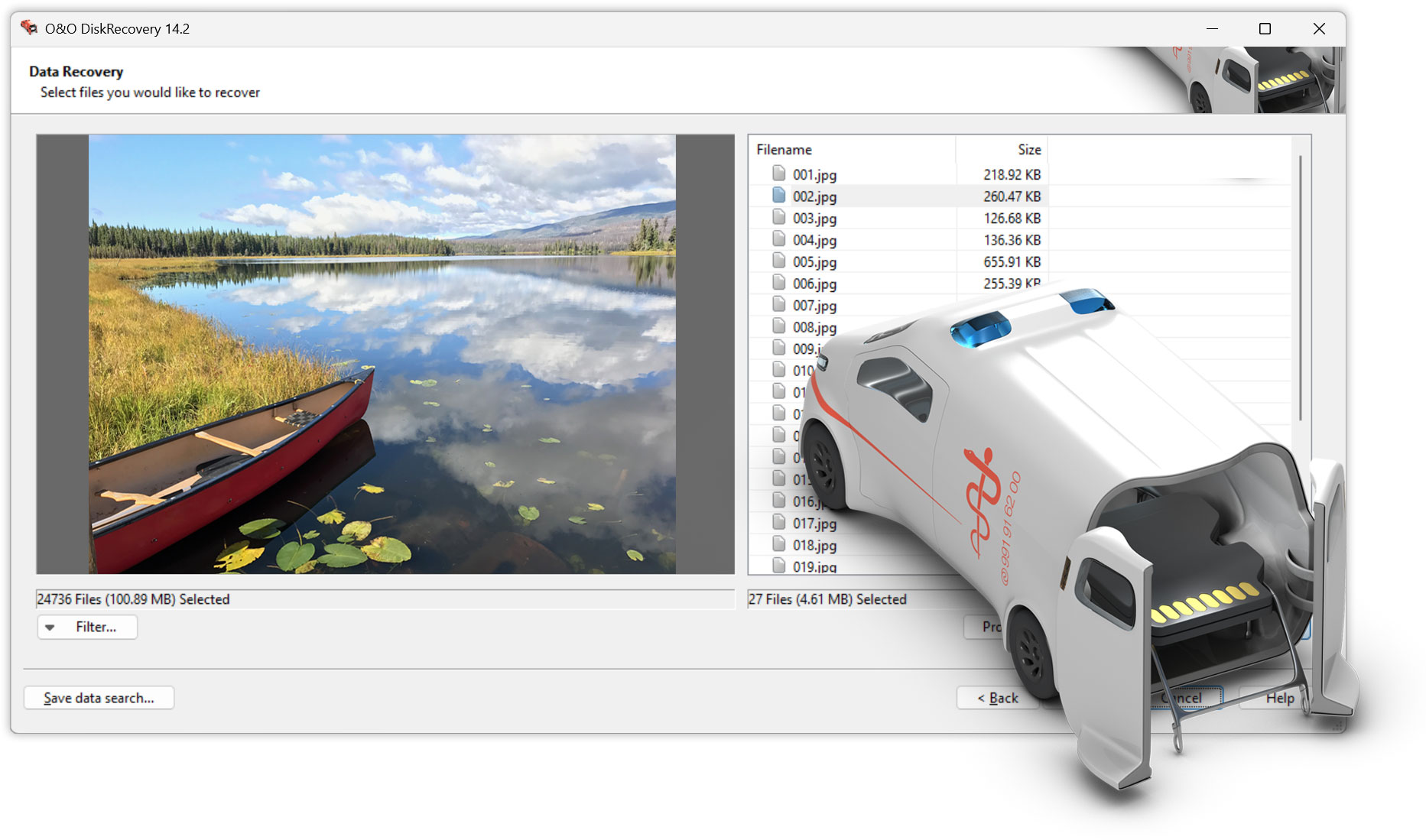
After scanning, select the files you want and start the recovery. Then set a location.
Important: If possible, save the recovered files to a different drive/disk than the one from which you are recovering to avoid overwriting any more recoverable data.
5. Can I search for files with the trial version of O&O DiskRecovery?
Yes. The trial version allows you to scan disks and see which files are found.
To restore, unlock the trial version by purchasing a license for the full version.
Many image and text files can also be previewed, so you can assess whether they are the files you are looking for before recovery.
6. My computer has only one partition. How can I recover files without having to install O&O DiskRecovery?
If there is only one partition, installing on the same drive can increase the risk of overwriting deleted data.
In such cases, a boot from an external medium or an emergency scenario (e.g. via a parallel system) is suitable so that no additional write accesses occur on the affected data carrier.
Basic rule: As soon as you notice the data loss, avoid further writes (no installations, no updates, no new files) until the recovery is complete.
7. What do I need O&O DiskRecovery for?
O&O DiskRecovery enables professional data recovery under Windows – for typical cases such as accidental deletion, formatting or damaged file systems.
The software searches disks deeply and can still find files even if the original folder structure no longer exists.
8. Is O&O DiskRecovery safe to use?
Yes. The search is performed as a read process and does not change the data on the data carrier.
For recovery, the found files are written to a location of your choice – ideally to another disk.
9. Who is O&O DiskRecovery suitable for?
O&O DiskRecovery is suitable for private users, administrators and technicians – depending on the edition and intended use.
Professional Edition (PE): For use on a single PC – ideal for home users.
Admin Edition (AE): For use in companies on their own systems. Suitable for administrators who need to restore data from company computers.
Tech Edition (TE): For service providers: also for data recovery on third-party systems as part of services (licensing per technician).
10. Do you offer licenses for administrators or technicians?
11. Why O&O DiskRecovery instead of a competitor’s product?
O&O DiskRecovery combines several search methods and in-depth disk analysis to find files even in difficult cases – e.g. after formatting or damaged file systems.
Instead of expensive special laboratories, you can carry out many data rescues yourself – quickly, conveniently and cost-efficiently.
A trial version is available on our website.
12. Which data carriers and file systems does O&O DiskRecovery support?
O&O DiskRecovery supports data carriers that are used under Windows as well as common Windows file systems such as NTFS, FAT/FAT32 and exFAT.
Important: If Windows can access the disk (e.g. via a drive letter), O&O DiskRecovery can usually scan it.
13. Do I need to uninstall an older version before installing the update?
Yes, we recommend uninstalling the previous version and then installing the new version.
Tip: Make a note of your license key in advance or make sure that you have access to your registration data.
14. Which Windows versions is O&O DiskRecovery 14 compatible with?
O&O DiskRecovery 14 is compatible with the supported Windows versions. The current system requirements can be found on the product page.
Note: 11, 10, 8.1, 8, Server 2012, Server 2012 R2, Server 2016 and Server 2022
15. Is O&O DiskRecovery secure? What happens in case of power failure during data recovery?
The search itself is a read process and does not change the disk.
If there is an interruption (e.g., power failure) during the recovery, files that have already been rescued may be present at the destination, while more files may need to be restored.
Recommendation: If possible, use a stable power supply (e.g. notebook with battery or UPS) and store the recovered data on a separate disk.
16. Is it true that overwritten files are not recoverable?
In many cases, yes: If the data areas of a deleted file have already been physically overwritten by new data, a complete recovery is often no longer possible.
Therefore, the following applies: Avoid further write accesses after the data loss. If possible, do not install the software on the affected drive, but use a different partition or external media.
17. What tests were carried out on the performance of O&O DiskRecovery?
O&O DiskRecovery has been mentioned in various tests and reports in the past. If available, you can find an up-to-date overview on our website or in the press area.
The free trial version is also available for you to check the chances of recovery on your disk yourself.
18. From which disks can I recover data?
O&O DiskRecovery can be used on many storage media supported by Windows, e.g. hard drives/SSDs, USB sticks, memory cards and other removable media.
Note: For RAID systems, recoverability depends on the RAID type and current configuration. If in doubt, we recommend creating an image and working on a copy.
19. Can I work over a network or store data on another computer?
The recovery is done locally from the scanned disk. However, you can save the rescued files to another disk or to a network destination – provided you have the necessary access rights.
This is even recommended, as it does not require write access to the affected data carrier.
20. What are the chances of recovering my deleted files?
The chances of success depend mainly on whether the data areas of the deleted files have already been overwritten.
Other factors include time of deletion, number of writes since then, file size, and file system.
Important: As soon as you notice the data loss, avoid further writes. Partial recovery can also be helpful – better a portion of the data than none at all.
21. Can I recover data that was previously securely deleted (e.g. with O&O SafeErase)?
As a rule, no. Secure Erase selectively overwrites data to prevent recovery.
O&O DiskRecovery can mainly recover data that was deleted in normal Windows operation and whose data areas have not yet been overwritten.
22. I accidentally clicked “No” on “Save?”. Can O&O DiskRecovery help?
Possibly. Many programs (e.g. Office applications) work with temporary files or auto-recovery functions.
If you react quickly and have made as few changes as possible since then, there is a chance that temporary files or caches can be found.
23. I have a lot of deleted files – can I find just one?
Yes. After the search, you can sort and filter the results, such as by file type and file size. This will help you find the files you are looking for faster.
24. I want to integrate an additional file signature. Is that possible?
Yes. On request, the O&O support team supports registered customers in integrating additional file signatures.
To do this, please send three sample files of the file format in question to support:
https://www.oo-software.com/en/support/csupport
25. How can I create my own signatures?
 30-day money back guarantee
Included in the O&O ToolBox – for €59.90 per year
30-day money back guarantee
Included in the O&O ToolBox – for €59.90 per year